

The fastest, supported way to automate document reminders in SharePoint is Power Automate. Use Automate > Set a reminder on a list or library for a quick setup, or build a scheduled recurrence flow when you need more control over filters, recipients, and escalation logic. This guide walks through the basic flow, an advanced dynamic pattern for multiple lists, and the debugging steps that fix most broken reminders.
TL;DR:
- Reminder flows require a properly formatted Date/Time column, correct permissions, and an account with stable access to avoid silent failures.
- Building a dynamic, multi-list reminder system simplifies management but demands careful handling of list metadata, pagination, and throttling issues.
- Testing and debugging hinge on verifying internal column names, accounting for timezone offsets, and isolating permission or connector issues early.
- For high-volume or complex needs, specialized expiration management platforms outperform Power Automate, especially in regulated or large-scale environments.
- Incorporating calendar events and setting escalation thresholds improves visibility and reduces missed reminders, especially for critical compliance and renewal documents.
Table of Contents
- Prerequisites for Setting Up Document Reminders
- How Do You Create a Basic Reminder Flow in Power Automate?
- Building One Dynamic Flow Across Multiple SharePoint Lists
- How Do You Test and Debug a Reminder Flow?
- Tenant Limits and Edge Cases to Plan For
- A Copy-Paste Flow Walkthrough With Real Expressions
- Syncing Automated Reminders With Outlook Calendar
- Handling Exceptions and Missed Reminders
- Security Considerations When Automating Document Reminders
- Best Practices for Setting Reminder Intervals and Frequency
- Monitoring and Analytics for Reminder Flows
- Common Use Cases for Automated Document Reminders
- When Power Automate Isn't Enough
- Automate Document Tracking Without Building the Flow Yourself
- Sources
- FAQ
Prerequisites for Setting Up Document Reminders
Before you open Power Automate, check four things. Skipping this step is the number one reason reminder flows fail silently or never fire.
- Date/DateTime column exists. Confirm the list or library has a column formatted as Date and Time, and note its internal name (not the display name), since OData filters reference the internal name.
- Licensing and access. The flow author needs Power Automate access included in most Microsoft 365 plans, plus edit permissions on the SharePoint site and list.
- Connection ownership. Decide whether the flow runs under a personal connection or a shared service account. Personal connections break when the employee who built the flow leaves the company.
- Timezone and formatting. SharePoint often displays dates in local time while Power Automate expressions calculate in UTC, so a document that "expires at midnight" can trigger a day early or late if you don't account for the offset.
Get these four right, and the rest of the setup is largely mechanical.
How Do You Create a Basic Reminder Flow in Power Automate?
For a single list with straightforward needs, Automate > Set a reminder inside the list's command bar is the quickest path. Microsoft's own Set a reminder flow walkthrough covers the exact clicks: pick the Date and Time column, set how many days in advance to notify, name the flow, and save. It generates a working reminder in minutes, with no expression writing required.
Build a custom recurrence flow instead when you need conditional logic, multiple recipients, or non-standard timing (like reminding 45 days before AND 7 days before). The sequence looks like this:
- Trigger: Recurrence, set to run daily or weekly depending on how time-sensitive the documents are.
- Get files (properties only): Point it at the library, and add an OData filter to pull only the rows you care about.
- Filter array or Condition: Narrow results further if the OData filter can't express everything you need.
- Send an email (V2) or post to Teams: Deliver the notification using dynamic content from the filtered items.
A typical OData filter for "documents expiring in the near future" looks like:
ExpirationDate le '@{addDays(utcNow(), X, 'yyyy-MM-dd')}'
Swap the sign and adjust the number for different windows. For example, to remind about a document that lapsed some days ago, use a negative number in addDays.
For recipients, three options cover almost every scenario: a Document Owner person column (most flexible), a static distribution email for compliance teams, or a hybrid where the owner gets the notice and a static address gets a copy for audit purposes.
Pro Tip: Build the OData filter against the "Modern" list view first, then verify the internal column name in the list settings URL. SharePoint frequently renames the display label without changing the internal name underneath it, which is the single most common reason a filter silently returns zero results.
Building One Dynamic Flow Across Multiple SharePoint Lists
Running a separate flow per library gets unmanageable once you pass five or six document libraries. A dynamic pattern consolidates them into one flow using a config-driven architecture, which a detailed walkthrough on automating reminders across multiple SharePoint lists lays out step by step.
The architecture runs like this:
- Recurrence trigger kicks off the flow on your chosen schedule.
- Get items from a small "config" SharePoint list that stores each target list's site URL, list name, internal date column, and reminder window.
- Apply to each config row, then inside the loop run Get files (properties only) against that specific list, using the config row's values to build the OData filter dynamically.
- Filter and send notifications per list, using the recipient logic stored in that same config row.
Storing list metadata in a config list, rather than hardcoding it into 15 separate expressions, means adding a new library later takes one new row instead of a cloned flow. Watch for two performance traps: raise the "Top Count" setting carefully, since the default pagination can silently cut off results on large libraries, and add delay or retry logic if you're hitting connector throttling across dozens of lists in one run.
Prefer separate flows when libraries have wildly different schemas or one library alone holds tens of thousands of items. A single oversized flow becomes harder to debug than several small, purpose-built ones.
How Do You Test and Debug a Reminder Flow?
Run the flow manually with Test > Manually, then open the run history and inspect the inputs and outputs for each action individually. Most broken reminders trace back to one of three causes:
- Wrong internal column name in the OData filter (the top offender by far).
- Timezone mismatch between the SharePoint column value and the UTC-based expression.
- Connector permission issues, especially after a password reset or MFA change on the account tied to the connection.
Add a Compose action right after your date calculation to log the exact computed value the flow is using, and route the first few test runs to a staging email address instead of the real distribution list. That single habit catches recipient errors before they reach real customers.
Pro Tip: Wrap your "Get files" and "Send email" actions in a Scope, and configure a second Scope to "run after" the first one has failed. That gives you a clean place to send yourself an alert when the flow breaks, instead of finding out three weeks later that nobody got reminded.
Tenant Limits and Edge Cases to Plan For
Reminder flows aren't universally available. Microsoft Learn's documentation on creating reminder flows confirms that GCC, GCC High, DOD, and other sovereign cloud environments don't support the built-in reminder feature at all, which means custom recurrence flows are mandatory in those tenants.
A few other realities worth planning around:
- Run quotas and throttling. High-frequency flows across large tenants can hit connector limits; batch notifications and stagger schedules where you can.
- Service accounts prevent orphaned flows. A flow built under someone's personal login stops running the moment that account is disabled.
- Rolling renewal documents (annual insurance certificates, recurring contracts) need a reset mechanism in your flow logic, since a simple date comparison alone will keep flagging the same document as "expired" until the record is manually updated.
A Copy-Paste Flow Walkthrough With Real Expressions
Here's a concrete example you can adapt directly.
- Set the Recurrence trigger to run daily at 7:00 AM.
- In Get files (properties only), use the filter:
ExpirationDate le '@{formatDateTime(addDays(utcNow(), 30), 'yyyy-MM-dd')}', always wrapping the comparison informatDateTimeso you're matching string format, not display format. - Find your column's true internal name by opening the list settings and checking the column's URL parameter, since SharePoint often shows a friendly name that doesn't match what the filter needs.
- Configure Send an email (V2) with dynamic fields for document title and expiration date, and add a Condition branch that escalates to a manager when the expiration date has already passed.
- Export the finished flow as a package and swap in environment variables for the site URL and list name, so the same template deploys across departments without rebuilding it from scratch.
Following Microsoft's official reminder flow creation guide alongside this expression pattern gets a working flow live typically within a single working session.
Syncing Automated Reminders With Outlook Calendar
Email alone gets missed in a crowded inbox. Adding a calendar layer catches people who scan their day view before they scan their email.
The simplest integration adds a Create event (V3) action for Office 365 Outlook right after your notification step, using the document's expiration date as the event start time and the document owner's email as the attendee. This puts a visible block on the calendar days or weeks before the deadline, not just a message that can get buried.
For recurring compliance windows, like insurance renewals that happen every year on roughly the same date, a calendar event with its own reminder setting adds a second layer of warning independent of the flow's email notification. If the flow fails to send for any reason, the calendar entry still exists as a backstop.
Some teams go further and create a shared "Compliance Deadlines" calendar that every relevant document reminder flow writes to. This gives managers a single view of every upcoming expiration across departments, without needing SharePoint access at all. It's a lightweight addition, usually one extra action per flow, but it closes the gap between "an email was sent" and "someone actually saw it."
Handling Exceptions and Missed Reminders
No flow runs perfectly forever. Connector outages, permission changes, and deleted list items all cause reminders to silently stop firing, and the fix is building in detection rather than hoping it never happens.
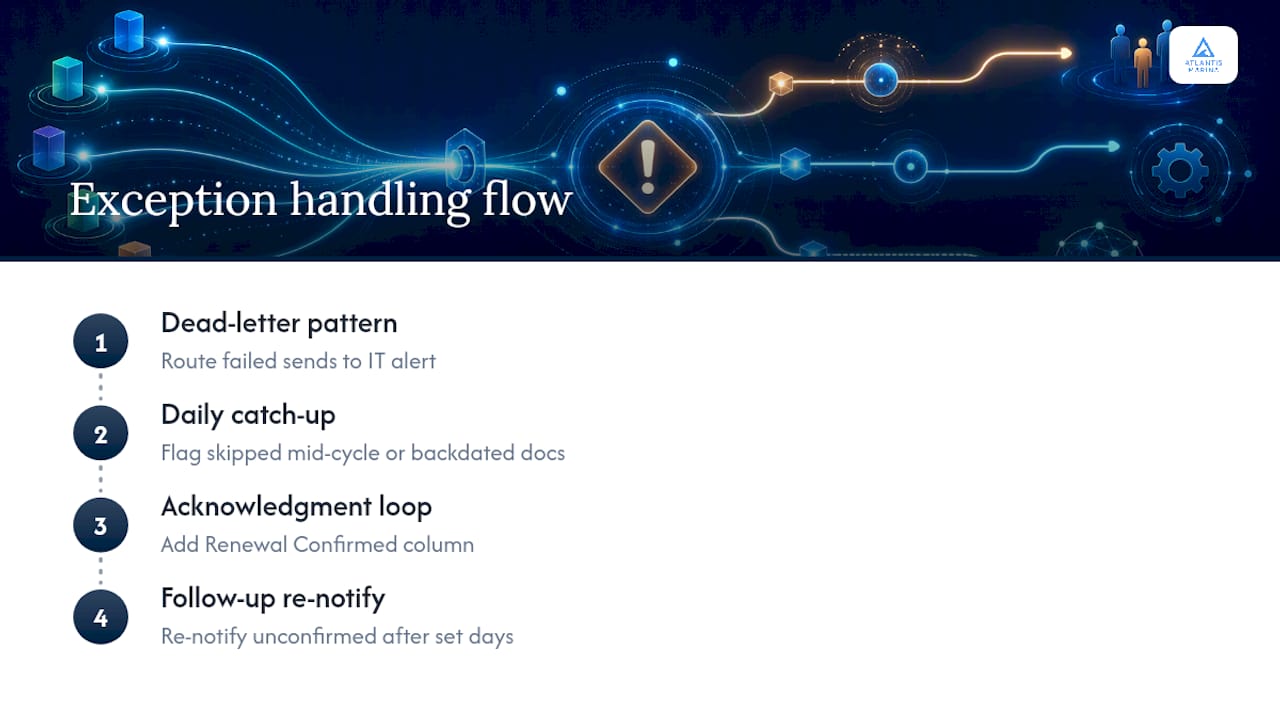
Start with a dead-letter pattern: when a "Send an email" action fails, route the error to a separate notification (email or Teams message) to an IT distribution list, rather than letting the flow fail quietly. Configure this with the "Run after" setting on a failure branch, not a second parallel flow.
For documents that never got a reminder because they were added mid-cycle or backdated, add a daily "catch-up" check. A short Condition comparing the document's expiration date against today's date, run independently of the main reminder logic, flags anything that fell outside the normal 30-day or 7-day windows and got skipped.
Also build in an acknowledgment loop where possible. A flow that sends a reminder but never confirms anyone acted on it is only half a solution. Some teams add a SharePoint column like "Renewal Confirmed" that the document owner checks, and a follow-up flow that re-notifies anyone who hasn't confirmed within a set number of days after the first reminder. That single addition catches the reminders that got read but not acted on, which is a more common failure mode than reminders that never send at all.
Security Considerations When Automating Document Reminders
Reminder flows touch two sensitive surfaces: the documents themselves and the notification content that travels by email. Both deserve a second look before you scale a flow across an organization.
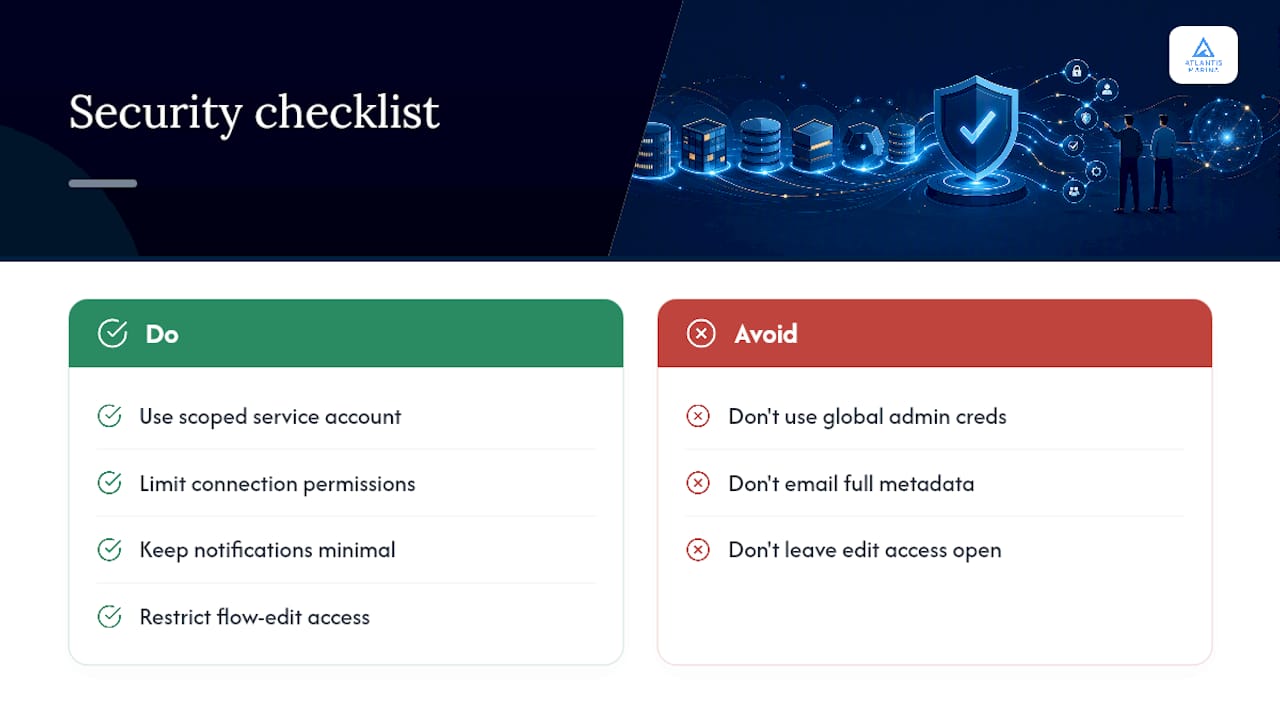
Limit the flow's connection permissions to exactly what it needs. A flow built with a global admin's credentials can read and write far more than a reminder flow requires, which turns a simple automation into an oversized security liability if that connection is ever compromised. A dedicated service account scoped to the specific site collection is safer and easier to audit.
Watch what goes into the notification body. Emailing a document's full metadata, including internal reference numbers or client details, to a broad distribution list can leak information that should stay restricted. Keep notification content to the minimum needed to act, like a title, a due date, and a link, rather than a full data dump.
Audit who can edit the flow itself. Anyone with edit access to a shared reminder flow can redirect notifications to a different address, disable the flow, or change the filter logic, so flow-editing permissions should mirror the sensitivity of the documents being tracked. For regulated documents like insurance certificates or vendor contracts, that often means locking flow edits to a small IT or compliance group rather than leaving it open to whoever built it first.
Best Practices for Setting Reminder Intervals and Frequency
Interval choice depends entirely on how costly it is to miss the deadline, not a single universal number. Insurance certificates and safety inspections usually warrant a longer runway, commonly 60 and 30 days out, followed by a sharper 7-day final notice. Routine internal paperwork with low consequences for lateness can get away with a single reminder at 14 days.
Stacking multiple intervals for the same document works better than relying on one. A document with reminders at 30, 14, and 3 days gives the owner three separate chances to act, and it means a missed email at day 30 doesn't guarantee the deadline slips entirely.
Frequency of the flow's own recurrence matters separately from the reminder windows. A daily recurrence trigger is standard for most document tracking, since it catches items that cross a threshold on any given day without over-notifying. Running the check more often than daily adds load without adding value for anything that isn't hour-sensitive.
Avoid one common mistake: setting the reminder window so tight that there's no time left to act once the notification lands. A 3-day warning on a document that requires a multi-step renewal process isn't a reminder, it's a countdown. Match the earliest interval to how long the actual renewal task takes, then layer shorter warnings on top of it as a final nudge.
Monitoring and Analytics for Reminder Flows
A flow that runs successfully isn't the same as a flow that's actually preventing missed deadlines, and that gap is where most reminder systems quietly fail.
Power Automate's built-in run history shows success and failure counts per run, which is the first layer of monitoring and worth checking weekly rather than only when someone complains. Set up a connector reference or environment alert for repeated failures so problems surface within a day, not a billing cycle.
Beyond run status, track outcomes: how many documents each reminder cycle flags, how many get renewed before the deadline versus after, and how often the same document appears in three consecutive reminder cycles because nobody acted on it. That last pattern, a document that keeps reappearing, usually points to an ownership problem rather than a flow problem, since the person receiving the notification often isn't the person who can actually renew it.
For teams running the dynamic multi-list pattern, add a lightweight logging step that writes each run's results (list name, items flagged, notifications sent) to a dedicated SharePoint list. That log becomes a simple analytics source over time, showing which document types generate the most repeat reminders and where the real bottlenecks in the renewal process actually sit.
Common Use Cases for Automated Document Reminders
Insurance and compliance certificates are the most common trigger for building a reminder flow in the first place, since a lapsed certificate can halt operations or create liability exposure with almost no warning otherwise.
Vendor and service contracts benefit from the same pattern, especially auto-renewing agreements where missing a cancellation window locks a business into another term it didn't intend to keep. A reminder set 45 days before the renewal date gives enough runway to actually negotiate or cancel.
Employee certifications, like safety training or professional licenses, follow a similar rhythm but usually need a longer lead time, since scheduling a renewal course or exam often takes weeks. HR teams frequently pair the reminder with an escalation to a manager if the employee hasn't acted within the first notice window.
Lease and facility documents round out the list, particularly for organizations managing multiple properties where a missed renewal notice period can trigger unfavorable automatic terms. The Seven due-date tracking guide covers similar principles for privacy-aware notification design that apply directly to these scenarios.
When Power Automate Isn't Enough
Power Automate handles SharePoint reminder workflows well at small and mid-scale. A marina office tracking vessel insurance certificates, lease renewals, and vendor contracts across one or two document libraries gets a fully working system with the patterns above, usually built in an afternoon.
The math changes once you're parsing documents in multiple formats, coordinating reminders across email, SMS, and staff dashboards, or managing renewals across dozens of properties. Dedicated document expiration platforms built specifically for that scale offer configurable multi-channel alerts and audit trails out of the box, which is a real tradeoff worth weighing against flow maintenance time. Marina operators specifically face this exact problem with vessel insurance and registration documents, which is where a platform-native approach to marina insurance document tracking starts outperforming a DIY flow. The broader question of document management at marinas comes down to volume and consequence: how many documents, and how bad is it if one slips through.
— John R
Automate Document Tracking Without Building the Flow Yourself
The platform gives marina operators reminder automation similar to the guide, built into the system without requiring OData filters to write or debug. Document uploads, expiration tracking, and multi-channel reminders for insurance certificates, registrations, and contracts run automatically the moment a document is attached to a vessel or slip record, with escalations that reach staff and boaters through email and SMS.
Where a Power Automate flow needs a service account, a config list, and someone to maintain it when a column name changes, Atlantis Marina keeps document tracking tied directly to the reservation and vessel record it belongs to, so nothing depends on a flow surviving staff turnover. If your marina is still tracking insurance certificates and lease renewals across spreadsheets or scattered SharePoint libraries, request a look at the full marina management platform and see how document reminders, billing, and reservations run from one connected system.
Sources
- Set a reminder flow
- Create a reminder flow in Power Automate for SharePoint
- Automating Dynamic Document Reminders Across Multiple SharePoint Lists with Power Automate
- ExpirationReminder - Document expiration tracking
FAQ
How Do I Automate Reminders in Outlook?
Outlook alone handles simple recurring personal reminders through its own Tasks and Calendar features, but automating reminders tied to SharePoint document data requires Power Automate, which can create calendar events and send emails triggered by a document's expiration date.
How Do I Set Up Automated Text Reminders for Documents?
Power Automate doesn't send SMS natively for SharePoint reminders, so most teams add a third-party SMS connector or Teams notification as a secondary channel alongside email; dedicated document-expiration platforms typically build multi-channel SMS support in directly.
Does Microsoft Have a Built-In Reminder Feature for SharePoint?
Yes. SharePoint lists and libraries with a Date and Time column include Automate > Set a reminder, which walks you through creating a working reminder flow using Microsoft's own guided setup without writing any expressions.
How Do I Set Up a Recurring Reminder in Power Automate?
Use a Recurrence trigger set to your preferred cadence (daily is standard), paired with a Get files (properties only) action and an OData filter that checks each item's date column against utcNow() plus or minus your chosen number of days.
Is Power Automate Available in Every Microsoft 365 Environment?
No. Sovereign cloud environments including GCC, GCC High, and DOD tenants don't support the built-in reminder feature, according to Microsoft's own documentation, which means those environments need custom-built recurrence flows instead.